.webp)

Every traditional PHP-FPM request pays a "boot tax." The framework boots from scratch: the container resolves, service providers register, config files load, routes compile. This happens on every single request, then the entire application is discarded. At scale, this repeated bootstrapping burns CPU cycles and adds latency that has nothing to do with your actual business logic.
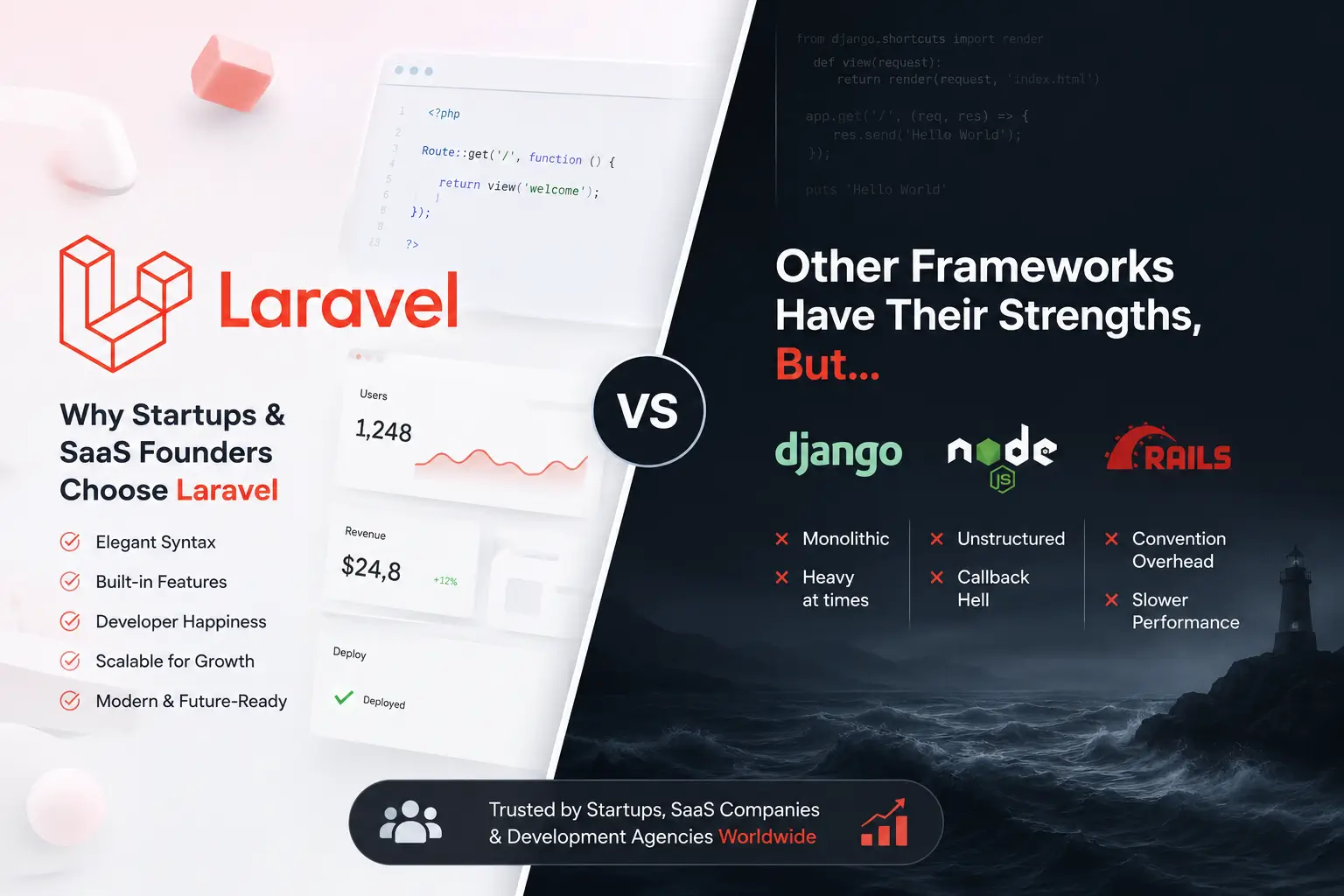
Laravel Octane eliminates this tax by keeping your application booted in memory and serving requests through a persistent worker process. Combined with FrankenPHP, a modern PHP application server written in Go, you get a single self contained binary that handles HTTP, worker management, and even HTTPS, without the traditional Nginx plus PHP-FPM stack. The result is a Laravel app that responds with the speed of a long running Node or Go service while staying fully PHP, which is one more reason Laravel continues to win out against other frameworks for teams that care about both developer experience and performance.
This guide walks through deploying a fresh Laravel application with Octane and FrankenPHP on an AWS EC2 instance running Ubuntu 24.04 LTS.
Step 1: Launching and Preparing the AWS EC2 Instance
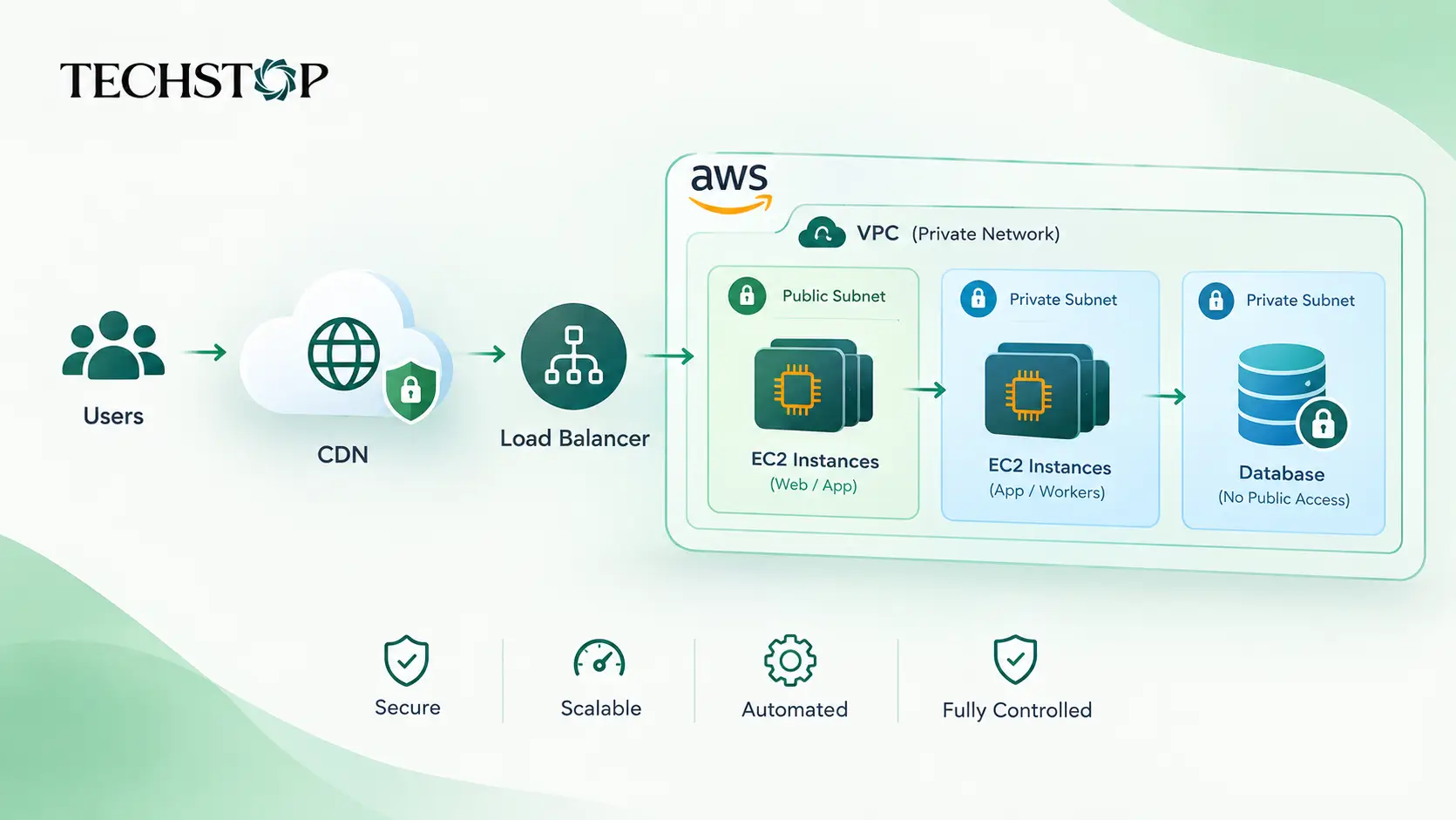
Start by launching an EC2 instance from the AWS console.
Choosing the AMI and Instance Type
Select Ubuntu Server 24.04 LTS (HVM) as your AMI. A t3.small or t3.medium is a reasonable starting point for most Laravel workloads.
Configuring the Security Group
Your Security Group needs three inbound rules:
SSH (port 22): restrict this to your own IP address.
HTTP (port 80): source 0.0.0.0/0 so the app is publicly reachable.
HTTPS (port 443): source 0.0.0.0/0 for TLS traffic, since FrankenPHP can manage certificates automatically.
Connecting via SSH
Once the instance is running, connect using your key pair:
ssh -i "your-key.pem" ubuntu@your-ec2-public-ip
Step 2: Installing Core Dependencies
With a shell open on the instance, update the OS and install PHP 8.3 along with the extensions Laravel requires.
Update the System
sudo apt update && sudo apt upgrade -y
sudo apt install -y software-properties-common ca-certificates lsb-release apt-transport-https
Install PHP 8.3 and Required Extensions
sudo add-apt-repository ppa:ondrej/php -y
sudo apt update
sudo apt install -y php8.3-cli php8.3-mbstring php8.3-xml php8.3-curl php8.3-zip php8.3-bcmath php8.3-sqlite3
Install Composer
curl -sS https://getcomposer.org/installer | php
sudo mv composer.phar /usr/local/bin/composer
composer --version
At this point PHP 8.3 and Composer are ready, and the server has everything needed to build and run a Laravel application.
Step 3: Setting Up and Configuring Laravel Octane
Create a new Laravel project and wire up Octane with the FrankenPHP runtime.
Create the Project
composer create-project laravel/laravel supersonic-app
cd supersonic-app
Install Octane
composer require laravel/octane
Run the Octane Installer
php artisan octane:install
When prompted to choose a server, select FrankenPHP. The installer downloads the FrankenPHP binary and adds the relevant configuration to your .env file, including:
OCTANE_SERVER=frankenphp
Test it locally on the instance before wiring up production process management:
php artisan octane:start --host=0.0.0.0 --port=8000
Visit http://your-ec2-public-ip:8000 to confirm the app boots and responds correctly.
Step 4: Production Deployment and Process Management
Running php artisan octane:start directly in a terminal session is not production viable. If the SSH session drops or the instance reboots, the server dies with it. Systemd solves this by managing Octane as a persistent, self healing background service.
Create the Systemd Service File
sudo nano /etc/systemd/system/octane.service
Paste the following configuration:
[Unit]
Description=Laravel Octane FrankenPHP Server
After=network.target

[Service]
Type=simple
User=ubuntu
Group=ubuntu
Restart=always
WorkingDirectory=/home/ubuntu/supersonic-app
ExecStart=/usr/bin/php /home/ubuntu/supersonic-app/artisan octane:start --host=0.0.0.0 --port=80
ExecStop=/usr/bin/php /home/ubuntu/supersonic-app/artisan octane:stop

[Install]
WantedBy=multi-user.target
Start and Enable the Service
Since port 80 is privileged, grant PHP the capability to bind to it, then start the service:
sudo setcap 'cap_net_bind_service=+ep' /usr/bin/php8.3
sudo systemctl daemon-reload
sudo systemctl start octane
sudo systemctl enable octane
Check that it is running:
sudo systemctl status octane
Octane now runs continuously, restarts automatically on failure, and starts on boot.
Conclusion
Deploying Laravel Octane with FrankenPHP on EC2 removes the repeated bootstrap overhead that slows down standard PHP-FPM deployments. The application stays resident in memory, ready to handle requests with minimal latency, while Systemd keeps the process alive and self healing.
One important caveat: since your application persists between requests, static properties, singletons, and improperly scoped state can leak between users. Always design Octane compatible code with statelessness in mind, and reset anything that should not survive past a single request.